


The Ultimate Guide to AFTV Codes and the AFTV app: How to Install Any App Easily
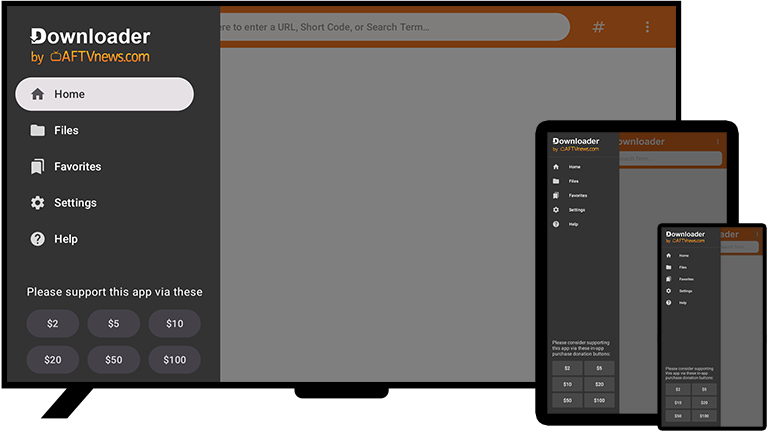
Have you ever tried to install a specific app on your Fire TV or Android TV, only to find it’s completely missing from the official app store? It’s a frustrating roadblock for many cord-cutters, but there is a brilliantly simple workaround.
Enter AFTV codes.
Whether you want to supercharge your home entertainment setup, bypass geo-restrictions, or simply side-load utility apps, understanding how to use these codes and the AFTV app is a game-changer. In this comprehensive guide, we will break down exactly what AFTV is, what these codes do, and provide a step-by-step tutorial to help you master the Downloader app.
What is AFTV and the Downloader App?
AFTV broadly stands for Amazon Fire TV, but in the app-sideloading community, it points directly to AFTVnews, the developer behind the wildly popular Downloader application.
The Downloader app is an essential tool for modern streaming devices. It acts as a specialized web browser and file manager, allowing users to download APK (Android Package Kit) files directly to their Firestick, Google TV, or Android TV. It effectively removes the need to use a computer or complicated network transfers to get third-party apps onto your television.
Because typing long URLs using a standard TV remote is a slow and tedious process, the developer created a brilliant URL-shortening system: AFTV codes.
What Are AFTV Downloader Codes?
An AFTV Downloader code is a short, 5-to-6-digit number that acts as a direct shortcut to a specific downloadable file or a webpage.
Instead of typing a long, complicated web address like https://www.example.com/app-version-latest.apk, you simply enter a quick numerical code (for example, 28544). The Downloader app automatically resolves this number, fetches the correct web address, and initiates the download.
Top Benefits of Using AFTV Codes:
- Major Time-Saver: Say goodbye to typing endless URLs with a clunky D-pad remote.
- Pinpoint Accuracy: Drastically reduces the risk of typos that lead to broken links or unsafe sites.
- Community Sharing: Short codes are easy to share across forums, Reddit, and social media.
How to Use AFTV Codes to Install Any App (Step-by-Step Guide)
Follow these simple steps to configure your device and start side-loading apps using AFTV codes in minutes.
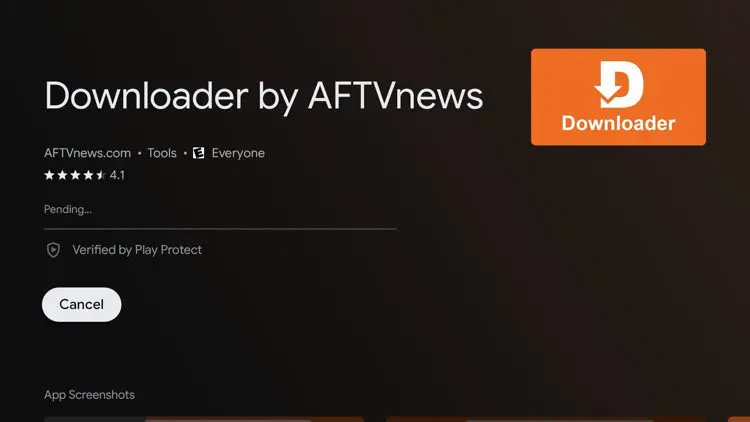
Step 1: Install the Downloader App
Before you can use the shortcut codes, you need the application itself.
- Turn on your TV and navigate to your home screen.
- Select the Search icon (the magnifying glass) or open your device’s App Store.
- Type in “Downloader”.
- Locate the app—it has a bright orange background with a white download arrow.
- Click Download or Get to install it.
Step 2: Enable “Apps from Unknown Sources”
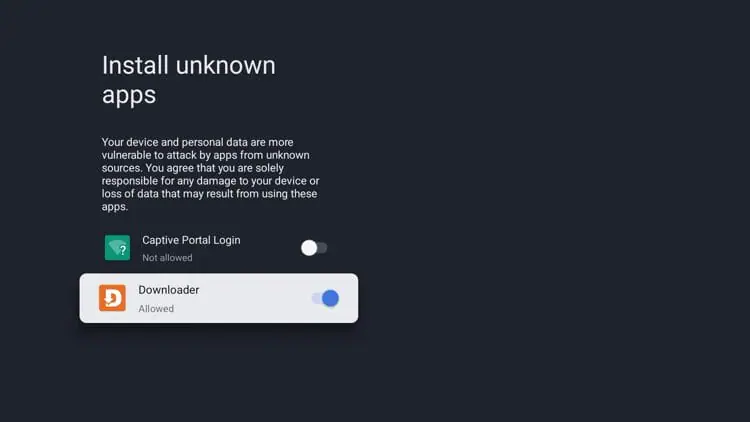
To install third-party apps via AFTV codes, you must give your device permission to accept files from outside the official ecosystem.
- Go to your device’s Settings (usually a gear icon).
- Navigate to My Fire TV (or System/Device settings if you are on Android TV).
- Click on Developer Options.
- Pro-Tip: If you don’t see Developer Options, click “About”, hover over your device name, and click the select button 7 times rapidly to unlock the hidden menu.
- Select Install Unknown Apps and turn the toggle to ON specifically for the Downloader app.
Step 3: Enter the AFTV Code
Now you are ready to put those magic numbers to work!
- Open the Downloader app from your home screen or apps list.
- Ensure you are on the Home tab on the left sidebar.
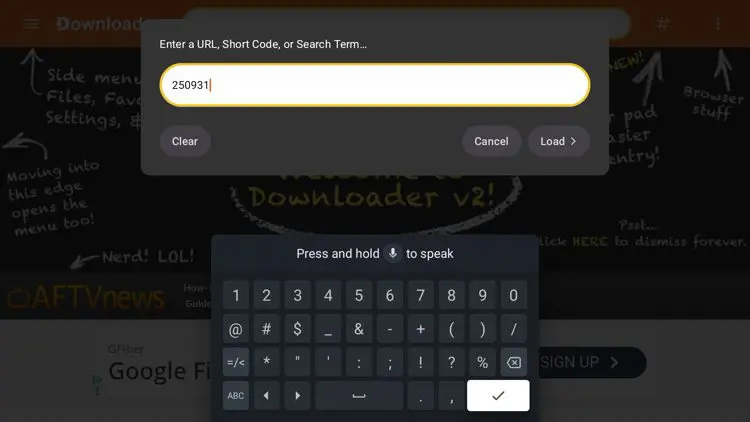
- Click into the URL search box in the center of the screen.
- Using the on-screen number pad, type in the specific AFTV code for the app you want.
[Insert Scre
Step 4: Download and Install
- After entering the code, click the Go button.
- The Downloader app will automatically connect to the AFTVnews server, redirect you to the file, and begin downloading the APK.
- Once the download hits 100%, a system installation prompt will pop up.
- Click Install in the bottom right corner.
- Once the installation is finished, click Done.
- Crucial Step: The Downloader app will ask if you want to delete the installation file. Click Delete to free up valuable storage space on your device!
Frequently Asked Questions (FAQs)
Are AFTV Downloader codes safe to use? The numerical codes themselves are completely safe; they are merely shortcuts. However, safety depends entirely on the file the code links to. Always ensure you are pulling codes from trusted developers and reputable sources to avoid installing malicious software.
Do I need a VPN when using AFTV codes? While a VPN is not strictly mandatory to operate the Downloader app, it is highly recommended. A reliable VPN encrypts your internet connection, keeping your streaming and downloading activity entirely private from your Internet Service Provider (ISP).
Why does my code return a “Not Found” or 404 error? AFTV codes are created by users and developers, meaning they can expire or be manually deleted. If you receive an error, double-check that you typed the code correctly. If it still fails, you may need to search for an updated code for that specific app.
Ready to unlock the full potential of your streaming device? Grab your remote, fire up the Downloader app, and start exploring the limitless possibilities of AFTV codes today!

[…] What is AFTV app and how to use it! […]
[…] AFTV Downloader Code: 7209809 […]
[…] use AFTV DOWNLOADER […]
[…] Install the Downloader app […]
[…] What is AFTV app and how to use it! […]
[…] use AFTV downloader […]
[…] or use AFTV downloader […]